


Table of Contents
TwinCAT Package Manager is Beckhoff’s new innovative way of managing packages within the TwinCAT environment. Released with their latest build 4026, Package Manager allows for quick and easy downloads of TwinCAT versions and workloads (collections of one or more packages), as well as individual packages. Let’s get started with some of the key features of the TwinCAT Package Manager.
Installation
Download the latest version of the TwinCAT Package Manager from the Beckhoff website. This blog will use the full installation, which includes the UI. If you would prefer the command-line-only install, some common commands are available on Beckhoff Infosys.

Follow the installation procedure to install TwinCAT Package Manager.
Configuration
Once TwinCAT Package Manager is installed successfully, open it. If this is your first time launching Package Manager, you should be greeted with the Introduction screen. If you have previously launched Package Manager, but want to follow along, you can access this screen with the Settings button (gear icon) in the bottom left.
Introduction
If you’re installing Package Manager on a system with a previous build of TwinCAT already installed, there will be a migration tab instead of a location tab. We will deal with that in a later section. Click Next.

Feeds
The next section is for configuring the feeds for Package Manager. Click the “Add new feed” button to add one of these feeds.


By default, Beckhoff provides three feeds: the stable feed, the outdated feed, and the testing feed. The stable feed contains officially released Beckhoff products and is typically the main feed for most workloads and packages. Select the URL that ends with “/stable” to add the stable feed. The feed name should auto-populate, but can be changed. Enter your valid myBeckhoff account credentials and click Save to add the feed. You can create your own myBeckhoff account if you don’t already one.
You’re also able to create your own feed, which you can access here. This would allow you to easily share custom libraries with other developers on your team. We won’t go in depth on how to do that in this blog, but the Beckhoff community GitHub repo has an example structure.

You should now see the feed added. You’re able to disable, edit, or delete the feed from this view if needed.
The outdated feed contains previous TwinCAT builds. If you used TwinCAT prior to build 4026, this is essentially the new version of Remote Manager. The testing feed contains test versions of workloads and packages. It’s most commonly used if you need access to an unreleased feature or are testing packages with Beckhoff engineers.
Follow the steps above for the stable feed to add the outdated and testing feeds, making sure to use their respective URLs.

Once you add the outdated and testing feeds, your Feeds tab should look like the one above. You can reorder the feed priorities using the up and down arrows on the right side. It’s recommended to keep the stable feed as priority 1 since it contains the officially released packages. If you reordered the feeds, click the save button in the top right. If you click next with unsaved changes, you will get this warning.

If you see this warning, click “Yes” to save changes. Click “Next.”
Integration
The next screen asks which versions of TwinCAT XAE to install. Since TwinCAT XAE is built on Visual Studio, it requires the same Visual Studio version (32-bit or 64-bit) to be installed. If you’re working on a project in build 4026 or newer, it’s recommended to use the 64-bit version when possible. If you’re working on a project in a build prior to 4026 or on a 32-bit computer system, the 32-bit version of TwinCAT XAE is the only option. You can always add or remove these XAE versions later, so for now, let’s install both. Click “Next.”

Migration
If you had a previous build of TwinCAT, you will be prompted to complete a Migration screen. If you did not have a previous build of TwinCAT, feel free to skip to the Location section.

The migration tool will attempt to capture existing user settings on previous versions of TwinCAT, uninstall previous versions, install the latest versions, and reapply the user settings. Let’s click “Start Migration” to get started.

When getting to step 2 of the preparation screen, you may see a notification that you need to install the MigrateCli package. Click “Yes” to continue.

Once the migration tool is installed, click “Start Simulation.”

Once the migration simulation runs, you should see a list of all existing products in the system and how TwinCAT Package Manager plans to upgrade them to packages and workloads.

Assuming all the products can be upgraded to packages and workloads, we are ready to start the migration. Click Start Migration.

Depending on the products you have installed, you may need to reboot your system. Press Ok and the TwinCAT Package Manager should automatically start up after rebooting and continue the migration.

Once the migration is complete, click Finish. You should see all the latest versions of the products you had previously installed on the system.
Location
If you did not have a previous version of TwinCAT installed, the final screen asks where to install TwinCAT. The default location is fine unless you have a reason to install it elsewhere. Click Finish.

Workloads and Packages
The workload view should be the default view when opening Package Manager for the first time. It can be navigated to by hovering over the package icon with a W in the bottom right and selecting workloads.

Workloads
Workloads are groupings of packages that closely align with Beckhoff’s licensing structure. For example, if you’re planning on using Beckhoff XTS in your solution, you can search for “XTS” to find the TF5850 | TwinCAT 3 XTS workload. This will install the necessary packages to work with XTS. If you are using XTS in your solution, check out our blog series on XTS to help get started!

The workloads in the general section are the ones we should install first. Let’s start by installing the latest version of TwinCAT Standard Engineering and the latest versions of TwinCAT XAE Shell 32-bit and 64-bit. If you’re installing the latest version, simply click on the blue download button associated with that workload.

You’ll see the planned installations added to the right side of Package Manager under selected products. Click Apply Modifications to start the installation.

Some workloads will require a restart. The TwinCAT Standard installation is one of them. Click Accept to continue.
If a pop-up appears asking you to allow the TwinCAT Package Manager to make changes to your device, click “Yes.”

The installation may take a few minutes, but Package Manager will give you a download and installation status.
Once the installation completes, Package Manager will show a check mark next to the workloads that were successfully installed.

We didn’t explicitly install TwinCAT Standard Remote Manager or TE9000 | TwinCAT 3 Safety Editor. Why are they showing as installed? TwinCAT Package Manager will install all dependencies needed to install the selected workloads! These workloads are dependencies for TwinCAT Standard and are automatically installed for us.
Workloads (Other Versions)
One of the nice things about TwinCAT Package Managers is the ability to access prior versions of all the workloads. Each workload has an ellipsis on the right side. Clicking on this provides the option to select other versions.

Click on the other versions option for TwinCAT Standard.

We can see that the latest version is currently installed and can be uninstalled here if needed. If we wanted to install a previous version, say 4026.21.2, we could click the icon next to that version. That icon is the downgrade icon. This would uninstall 4026.22.0 and downgrade TwinCAT Standard to 4026.21.2. However, TwinCAT Standard Remote Manager can be used when working on multiple solutions across different versions.
Click the triple-dot icon next to TwinCAT Standard Remote Manager, then select other versions.

The icons here are install icons instead of downgrade icons, even though we already have the latest version installed. This is because the TwinCAT Standard Remote Manager supports multiple versions, as indicated by the AllowMultiple attribute in the top left. Installing from here will allow both versions to coexist on the same system. To illustrate this, I’ll install version 4026.21.2.

The Package Manager workload for TwinCAT Standard Remote Manager now shows a [ + 1 ] to indicate multiple builds are installed.

When opening TwinCAT XAE, we now have multiple builds to select from!
Installing Pre-4026 Builds
If you haven’t already, make sure you’re connected to the Beckhoff outdated feed. You can configure your feeds by clicking on the settings icon in the bottom left.
Once you have the outdated feed configured, hover over the package icon with the database in the bottom right. Select the “Beckhoff Outdated Feed.”

The only workload associated with the Beckhoff Outdated Feed is the TwinCAT Standard Remote Manager. From the outdated feed, we can install pre-4026 builds of TwinCAT.
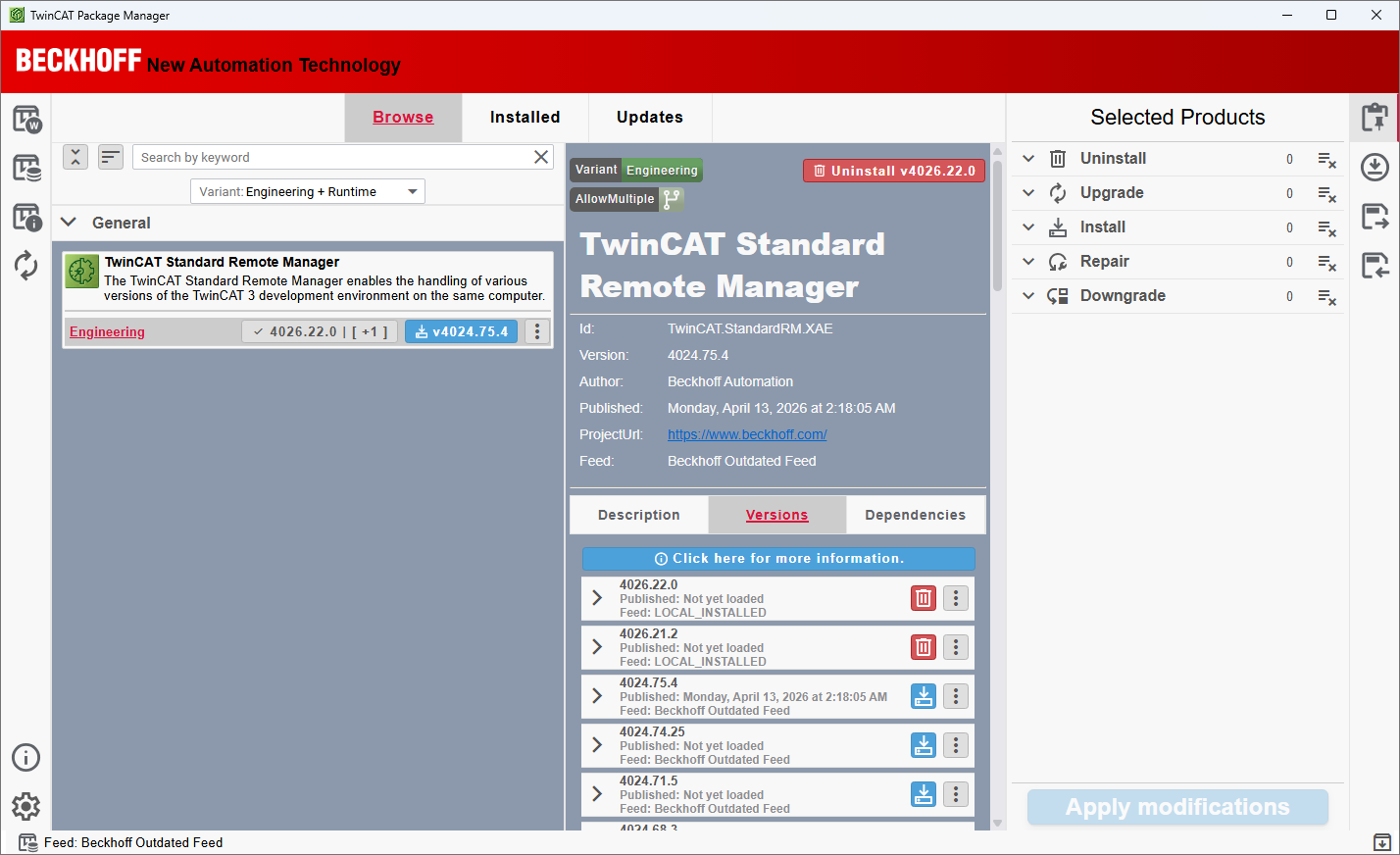
I’ll install build 4024.75.4 to illustrate.

After installing build 4024.75.4 on TwinCAT Package Manager, it is now selectable in the build dropdown.
*NOTE: This is only available in the 32-bit XAE. The 64-bit version of XAE only supports builds 4026 and newer.
Packages
So far, we’ve been dealing with Workloads. Workloads are groupings of packages that TwinCAT organizes primarily according to Beckhoff’s licensing structure. TwinCAT projects reference packages directly. Let’s open a new TwinCAT XAE project to see this.

In the References folder of a brand new TwinCAT project, there are the Tc2_Standard, Tc2_System, and Tc3_Module packages.
Let’s switch back to the package manager. On the left, you should be able to go to the package view menu and select Packages.

This will show the individual packages that are available and installed on the system. Let’s search for Tc2_Standard.

We can see that Tc2_Standard is installed.
How To Deal with a Missing Package
If you have a missing package on a TwinCAT project, you will be greeted with a warning sign that looks something like this:

The package with the warning symbol next to it is missing from the project. Double-clicking on the package shows that the library is not available and does not have an effective version listed.

Right-click on the missing package and open the properties window. The resolution will show the version of the package that the TwinCAT PLC project is expecting.

If we go back to Package Manager and search for the Tc2_System package, we can see that although it is installed, it is not the same version the PLC project expects.

Click the ellipses next to the package, then select other versions.
Similar to Workloads, Packages have multiple versions that can be installed onto the same system. In this scenario, we have Tc2_System v3.10.1 installed already, but do not have v3.9.1. Tc2_System allows for multiple versions to be installed, indicated by the AllowMultiple tag. Let’s install v3.9.1 and see if that resolves our issue. Click the download button next to v3.9.1 and click “Apply modifications.”

If you see a message about “TwinCAT XAE / Visual Studio stop required,” be sure to close all open XAE windows before clicking Accept. Once the package is installed successfully, we can check the previously missing package.

The library is now available and has an effective version of v3.9.1. We have installed our missing package through Package Manager!

Conclusion
The TwinCAT Package Manager is a huge improvement in how engineers can manage the various Packages and Workloads that make up a TwinCAT solution. TwinCAT Package Manager is just the start of the improvements that TwinCAT build 4026 brings to development. A complete list of changes is offered on the Beckhoff website. If you’re starting a project in 4026 or upgrading an existing solution to 4026, reach out to DMC and see how we can help! We have extensive experience with upgrading and developing across all TwinCAT builds.
Starting a TwintCAT 3 project or upgrading an existing system?
DMC’s Automation team can help you migrate environments, manage dependencies, and streamline Beckhoff TwinCAT development. Contact DMC to get started.